Overview
Once you’ve completed designing both the front and back cover, the next step is to preview and finalize your design before moving forward in the publishing process.
Steps to Finalize Your Cover
Click on the “Preview and Finish” button on the right-hand side of the dashboard.
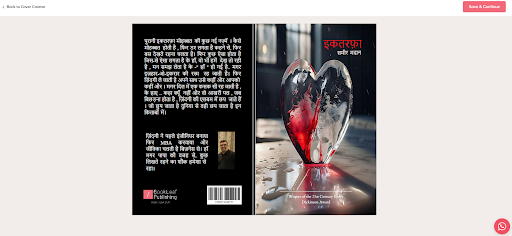
This will generate a full preview showing how both the front and back covers will appear in print.If you’re satisfied with the preview, click “Save and Continue” on the right-hand side to proceed to the next step.
If you'd like to make any changes, click “Back to Cover Design” to return and edit your cover before finalizing.
? Important: Please review everything carefully, as the final print will reflect the design shown in the preview.
If you need any assistance, our support team is happy to help.
Example Views of the Dashboard
Here’s how the preview and edit screens may appear:
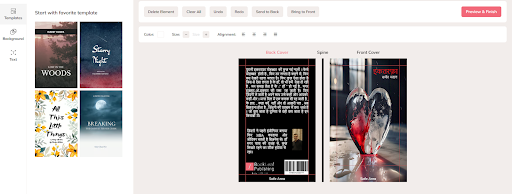
Final preview of front and back cover
Next Step: Fill Book Distribution Details
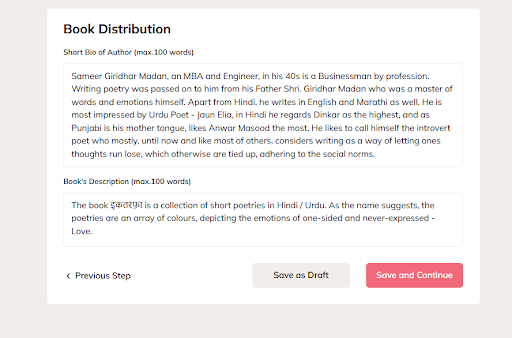
Once the author completes the Cover Design section, the next step is to fill in the Book Distribution section.
The information provided here will be used for listing your book on Amazon and the BookLeaf Store.
Please note:
These details will not be automatically updated on the back cover.
You must manually edit the back cover if you want the same content reflected there.
(1).png)
Still Need Help?
Raise a support ticket if you’re facing issues with preview or distribution info:
https://bookleafpublishing.freshdesk.com/support/tickets/new
Was this article helpful?
That’s Great!
Thank you for your feedback
Sorry! We couldn't be helpful
Thank you for your feedback
Feedback sent
We appreciate your effort and will try to fix the article